Why I’m convinced LiveVoice is the best live translation tool on the market – for businesses, churches, and conferences.
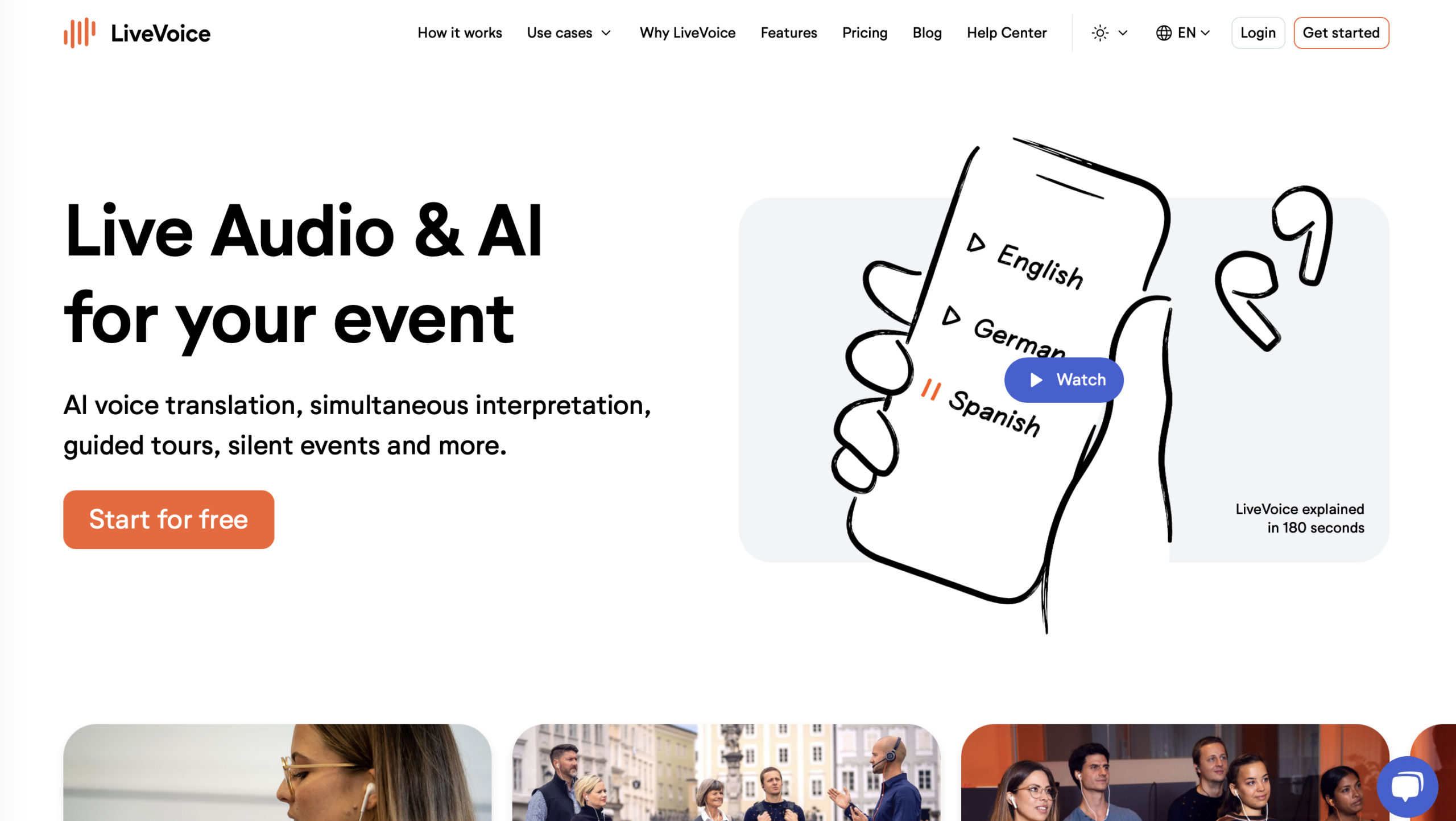
That I, as a co-founder of LiveVoice, am convinced our solution is the best might not seem surprising. But especially in times when AI translation tools are popping up everywhere because – again with AI’s help – it’s becoming increasingly easy to quickly generate any kind of app, I’m convinced our approach is the most successful in the long run, and that we’ve built something that surpasses all other solutions.
When we conceived the idea for LiveVoice in 2016, I wouldn’t have dared to dream what it would one day become. Nor would I have imagined how much work it would entail.
Because we didn’t make life easy for ourselves. Bootstrapped – without investor funding, relying solely on our own labor – we began developing something that wasn’t yet available on the market.
I was looking for an app to replace traditional interpreting systems, because my wife was an interpreter at our church, and we wanted to buy one. When I realized how expensive such analog systems are, I started looking for an app.
„There must be an app for that,“ as they say. But there wasn’t one. Real-time audio transmission was still in its infancy back then. Video conferencing tools like the ones that have become so popular since the pandemic were practically nonexistent and weren’t suitable for this purpose.
So we started developing one ourselves, initially as a private project alongside my job at Red Bull. We finally launched in 2019. And now LiveVoice can do not only human interpreting but also AI translation at the highest level.
We have customers in over 100 countries, including churches and other non-profit organizations, as well as companies and events of all sizes. From corporate meetings to large conferences, from Willow Creek to ICF, from Deutsche Telekom to the Web Summit.
Continue reading The best AI translation app for events and churches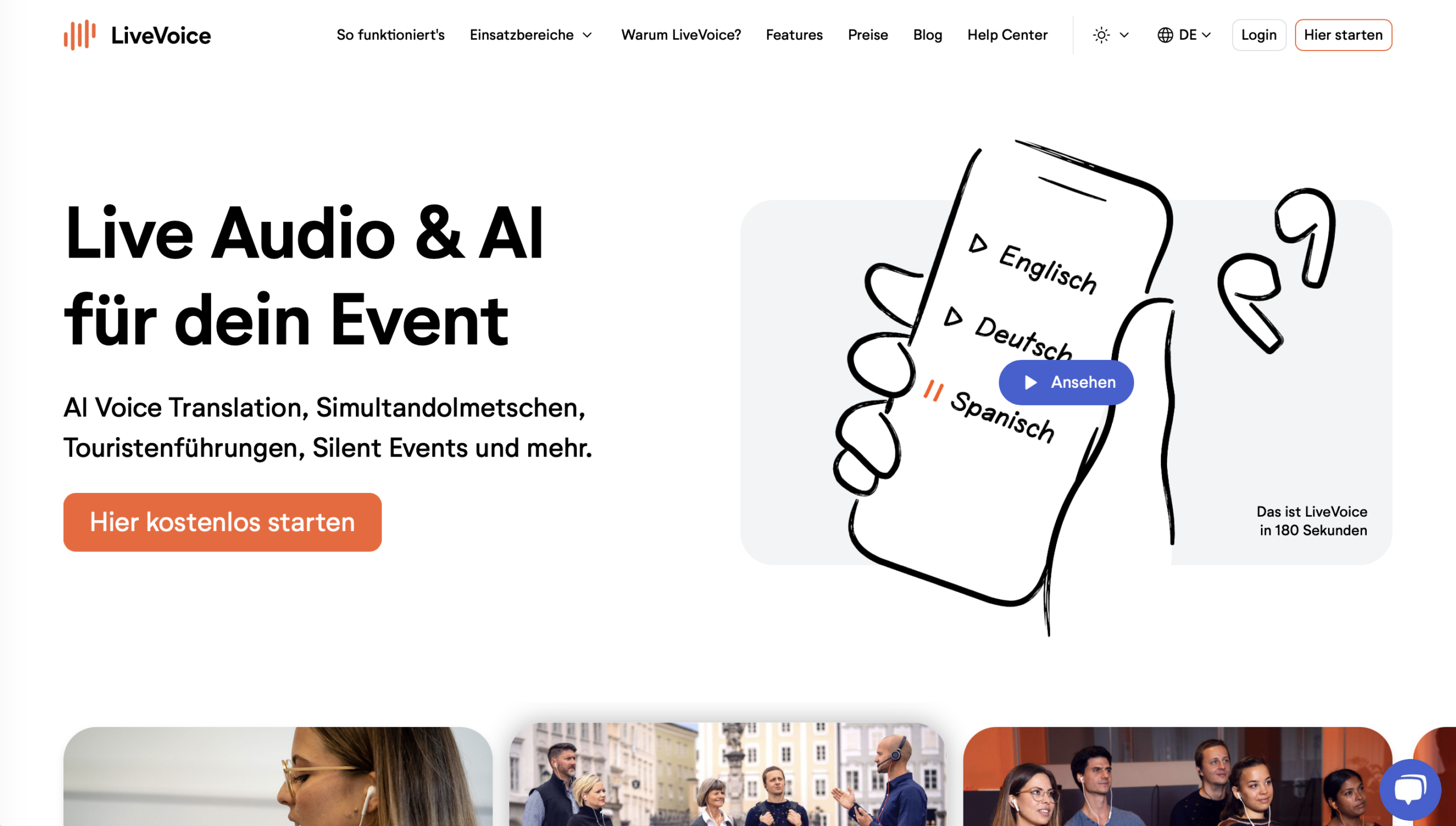


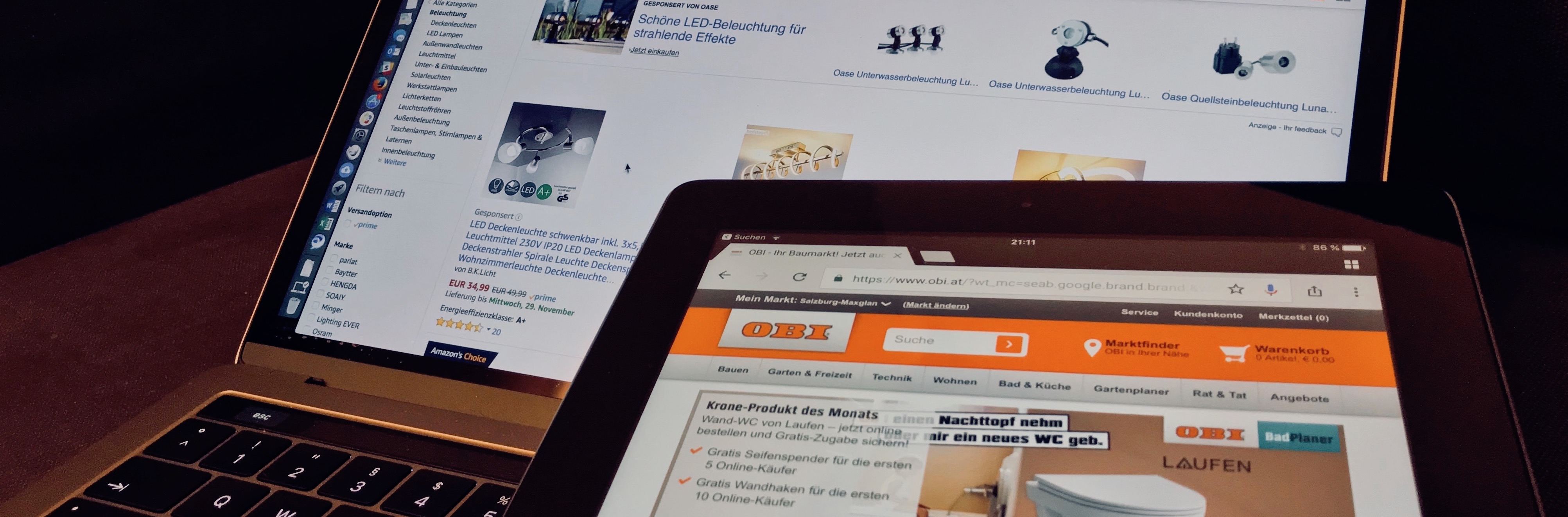
 Warum nicht Facebook & Co für uns definieren dürfen was wahr ist.
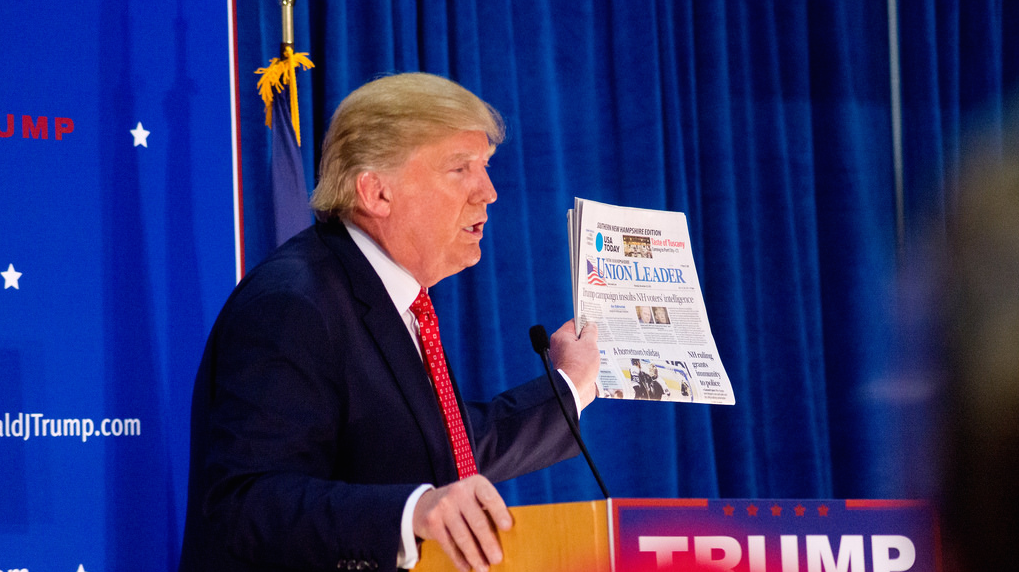 Die Aufregung war groß. Zuerst über die Wahl von Trump (das hat jeder mitbekommen) und kurze Zeit später dann über den vermeintlichen Hauptgrund seines Sieges (das haben zumindest alle Journalisten und Social Media Nerds mitbekommen).